
Greenboard - Microsoft Entra SSO Setup Instructions
Overview
These instructions show how to register Greenboard as an application in the Microsoft Entra Admin Center, configure its permissions and SSO access, and provide the connection details to Greenboard.
Step 1: Sign in to the Microsoft Entra Admin Center
Sign-In to the Microsoft Entra Admin Center.
Step 2: Note your primary domain
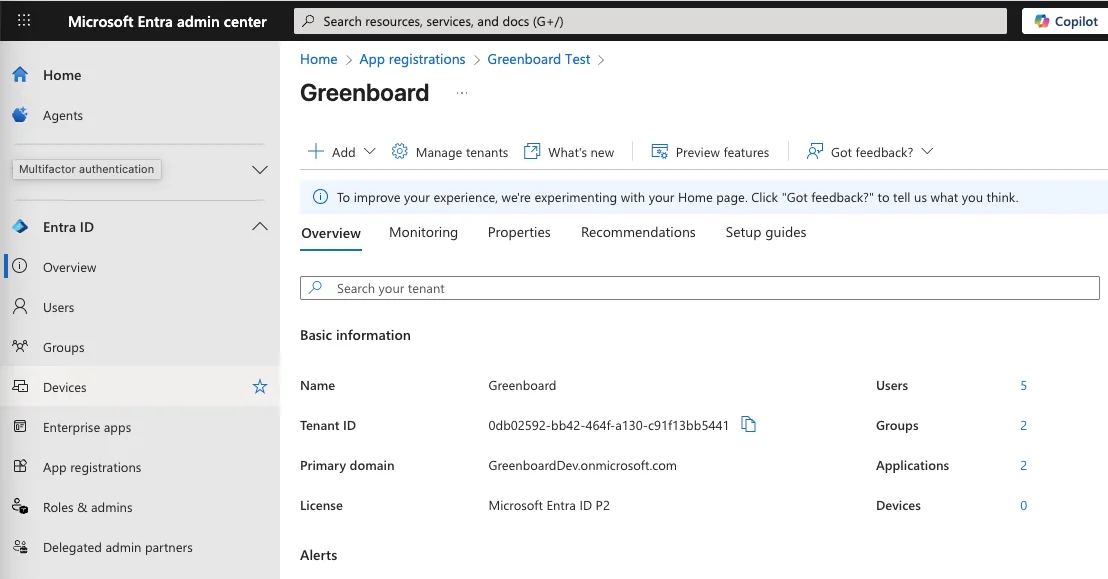
Go to the Azure Active Directory. In this view, take note of your Primary domain.
Step 3: Create a new app registration
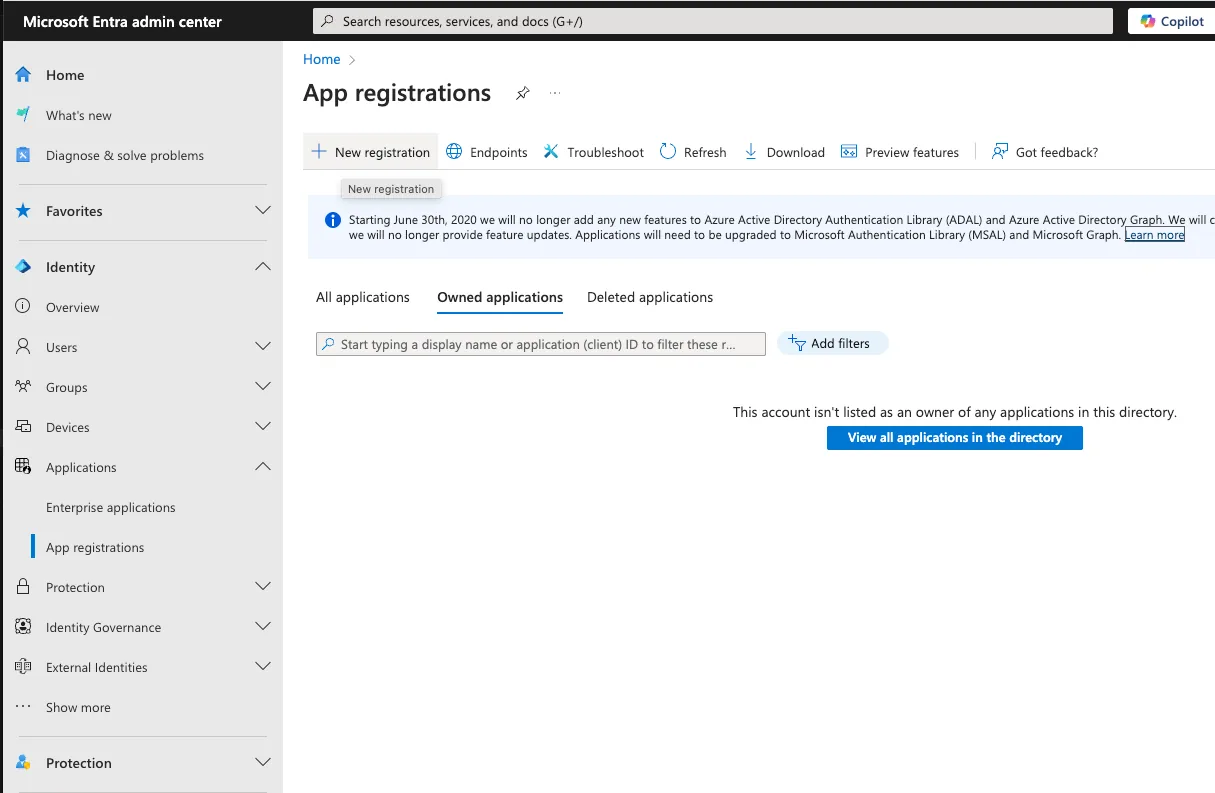
Navigate to Applications > App registrations > New registration.
Step 4: Complete the new registration details
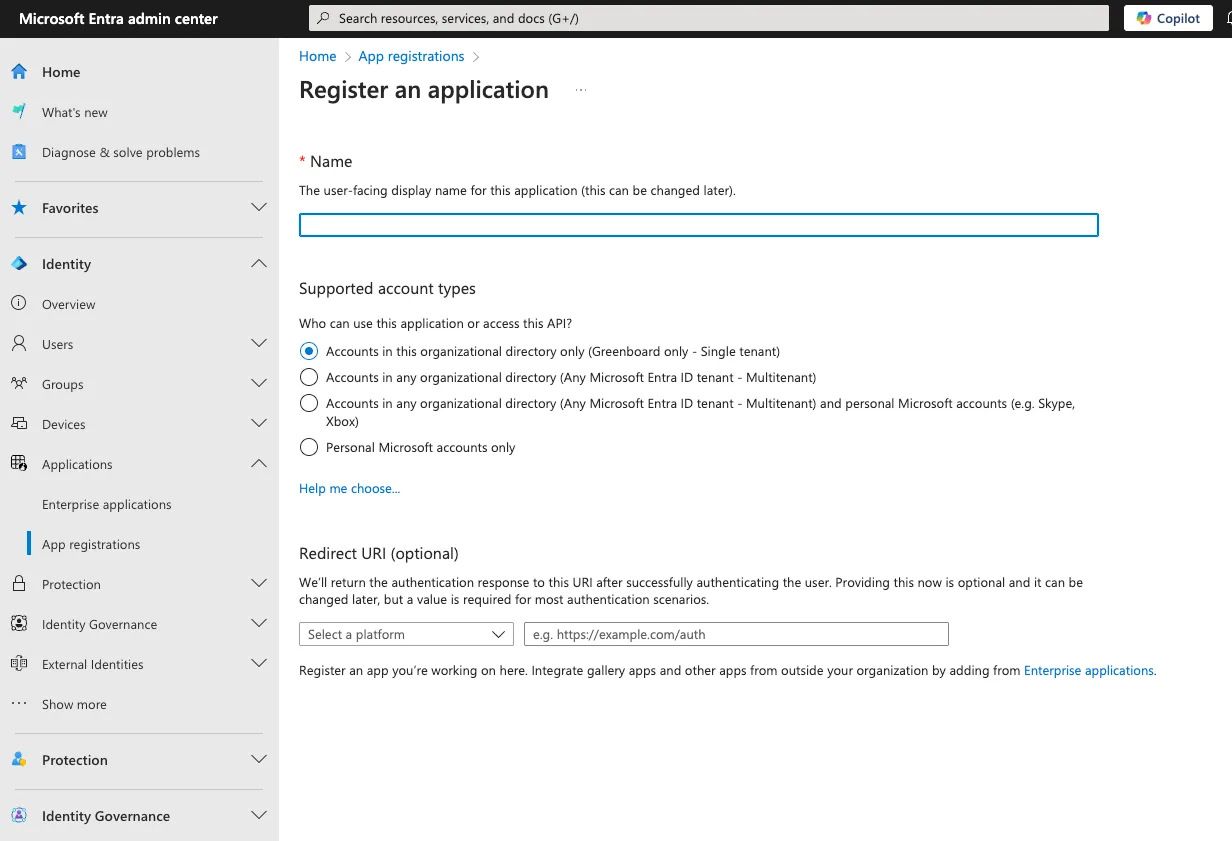
Name: Greenboard
Supported account types: Accounts in this organizational directory only (Greenboard only - Single tenant)
Redirect URI: https://auth.greenboard.io/login/callback
Click Register.
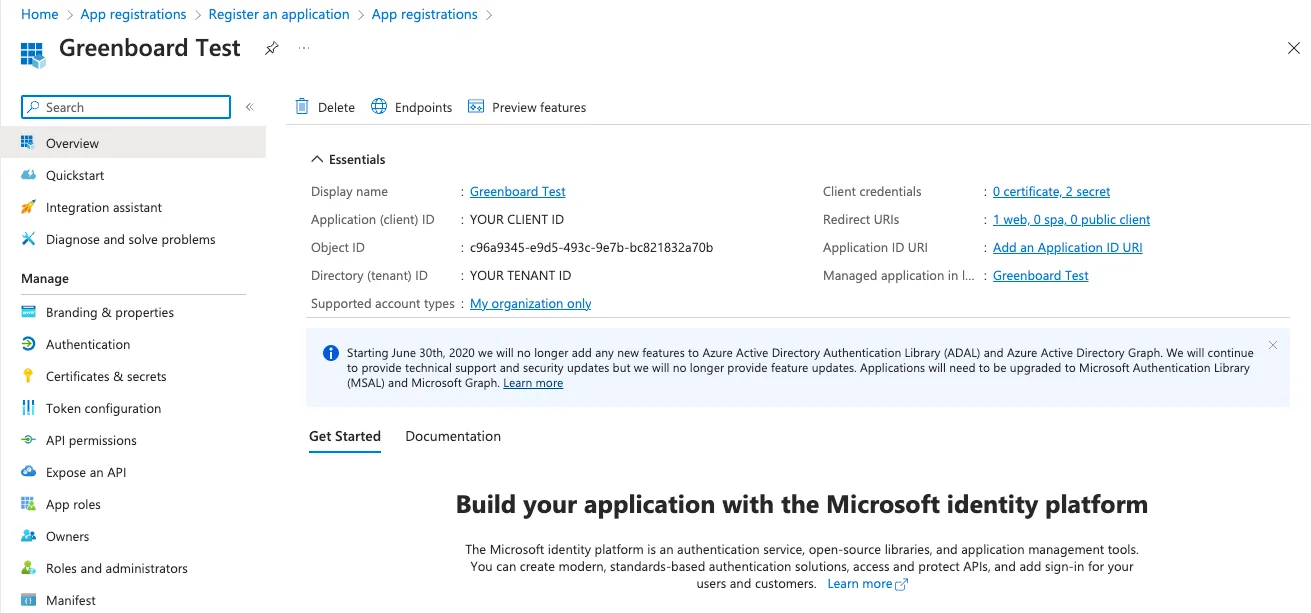
Step 5: Note the Application (Client) Id and Directory (tenant) Id
Once directed to the new registration’s page, take note of the Application (Client) Id and the Directory (tenant) Id.
Step 6: Create a client secret
Create a secret to be used in connect to Greenboard.
In the left panel, go to Certificates & Secrets
Click New Client Secret
Click Add
Copy the Secret Value.
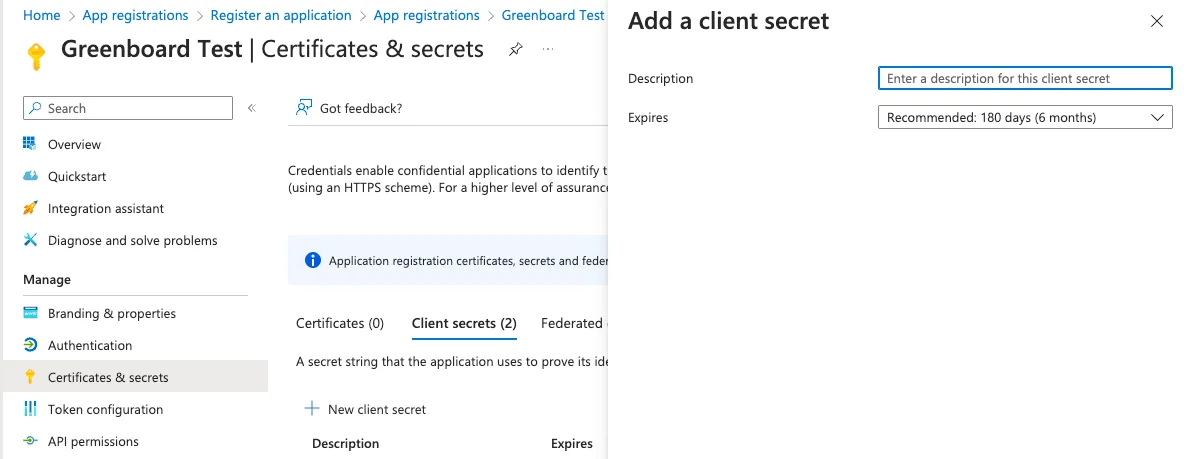
Important: You must copy the Secret Value, Not the Secret Id.
Step 7: Configure API permissions
Configure access levels for Greenboard access.
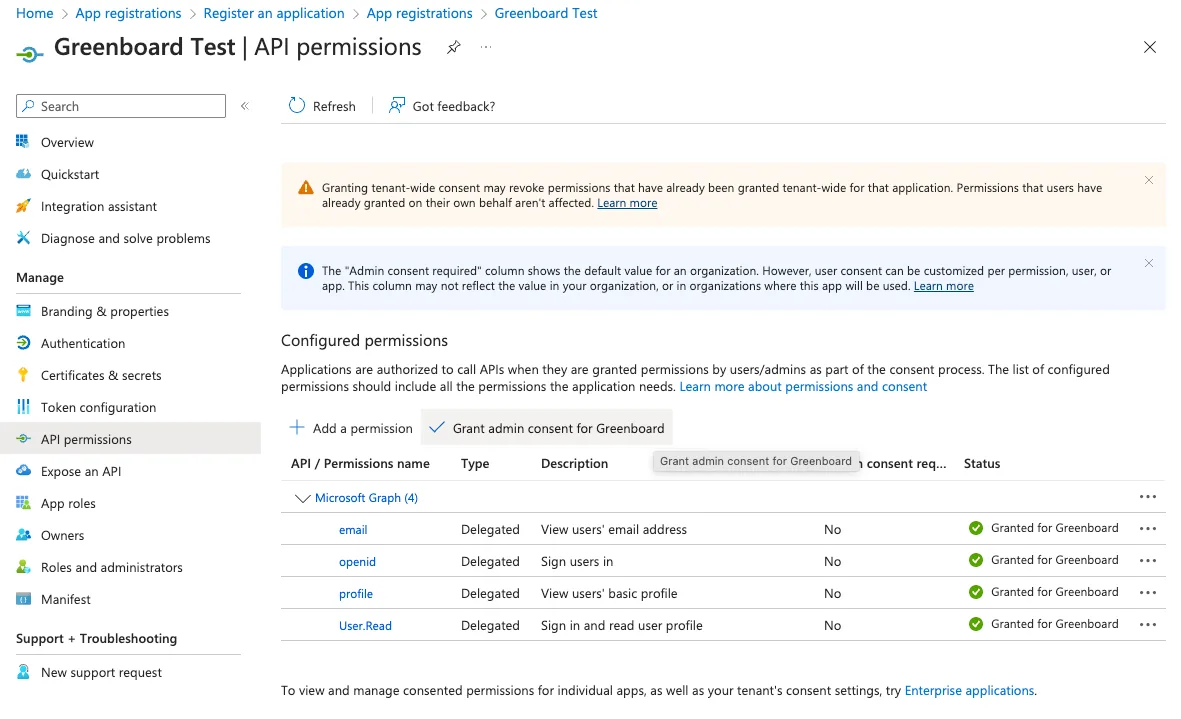
From the Application's page, click API Permissions
Choose Microsoft Graph
Select Delegated permissions
Add these permissions:
email
openid
profile
User.Read
Click Add permissions
Click Grant admin consent
Step 8: Allow SSO access
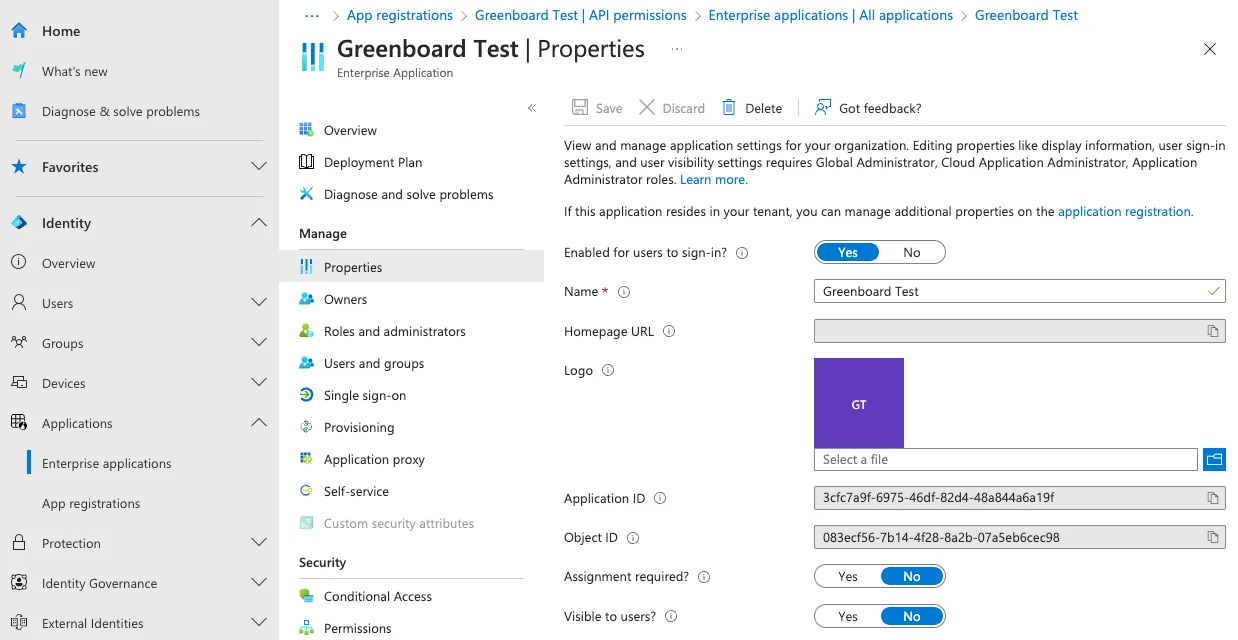
Go to Enterprise applications in the main menu
Find your newly created application
Under Properties, ensure Enabled for users to sign-in is set to Yes
Under Users and groups, assign the users who should have access
Step 9: Provide connection details to Greenboard
Greenboard will provide a secure upload link where you can upload a document with the following information, from Steps 2-5 above:
Domain Name
Client ID
Client Secret
Tenant ID
Step 10: Confirm access
Once details are transmitted, the Greenboard team will confirm connection
You can now test the SSO connection
Tip: As a best practice, we recommend sharing any credentials with the Greenboard team using an encrypted or secure method where possible.
Questions? Contact support@greenboard.com.